PHOTO & EDITING BASICS / EDITORIAL GUIDE
Photo-to-video ideas: 5 ways to add motion without overselling AI
A still image can already tell a moving story. You can create pacing with a crop, a slow camera move, a second image, a caption or a sound cue—no untested generator required.
This guide separates editing techniques you can plan with ordinary tools from generative animation that needs its own validation. It also explains how to choose a source photo and decide whether your idea needs genuine motion, a sequence of stills or simply better framing.
This is a practical idea and photo-planning article, not a generator, real AI output showcase or claim about model performance. All TrendPico effect concepts remain unavailable for public generation.
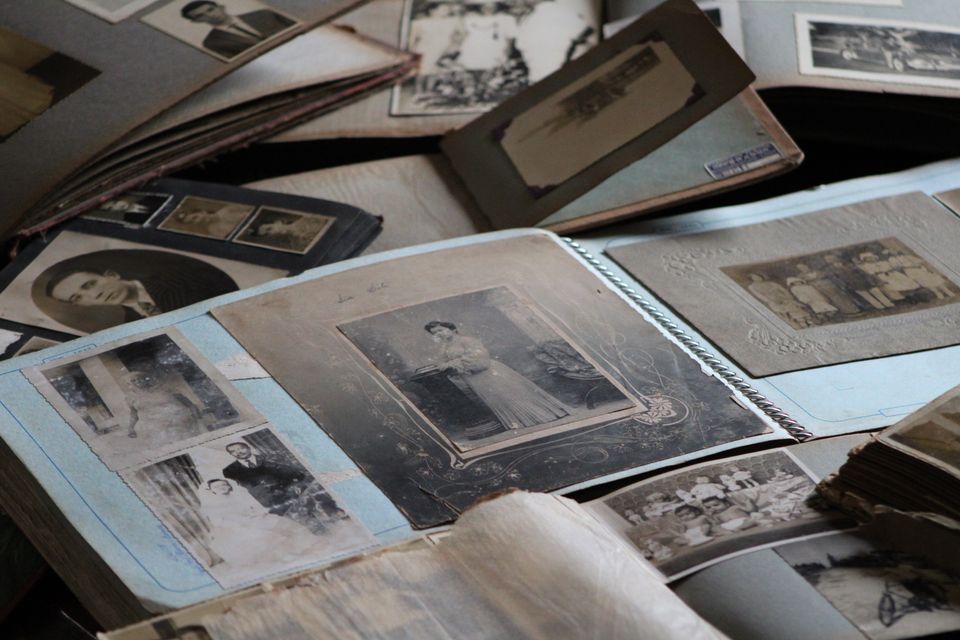
STORYBOARD LIBRARY
Five approaches from simple edits to more ambitious motion
Pick the lightest technique that communicates the idea. A good edit should not require an AI model to invent an entirely different scene.
The slow reveal
Set-up: Start tightly cropped on one part of a photograph, then widen to show the context.
Action: Use a modest digital pan or zoom to guide the viewer's eye.
Editing note: Leave enough pixels for the crop and avoid pretending the still photo contains recorded physical motion.
A two-image micro-story
Set-up: Pair a starting portrait with a separate object, place or moment that changes its meaning.
Action: Cut on a musical or narrative beat so viewers connect the images.
Editing note: Give the first shot time to establish the subject before introducing the second; both images need reuse rights.
A caption-led reaction
Set-up: A pet, friend or adult looks toward the lens with one expressive face.
Action: Let a caption set up a situation and a second line deliver the punch line.
Editing note: This format works even if the background and subject never move. Readability and text timing matter more than animation complexity.
A restrained depth effect
Set-up: Foreground and background elements appear to move at slightly different speeds.
Action: Plan a subtle parallax effect if you have the time to separate image layers cleanly.
Editing note: Watch for stretched edges and uncovered holes; use it only where the source photo supplies enough depth.
An imagined animated moment
Set-up: A fictional character, costume or setting comes to life beyond what the photograph captured.
Action: Write one simple action and decide what must remain visually unchanged, such as face, clothing or camera position.
Editing note: An actual generative workflow must be tested for safety, visual continuity, cost and licensing. TrendPico's concept pages are not proof of that capability.
PRACTICAL WORKFLOW
A practical planning workflow for any still photograph
Check rights and the subject
Use an image you own or may lawfully modify. If a recognizable adult appears, confirm consent for the intended presentation. Avoid creating misleading depictions and preserve the untouched source.
Define the ending first
Write the one change viewers should notice by the last frame: a revealed object, a new caption, an emotional turn or a different crop. That gives the edit a reason to exist.
Choose the smallest workable motion
If a slow zoom communicates the ending, try that before asking a model to animate a face or body. If you need a sequence, sketch three beats: setup, change and resolution.
Review the export on a phone
Check legibility, aspect ratio, margins, motion smoothness and sound permissions. Mark synthetic imagery as synthetic, and do not use a stock photo as evidence of an AI result.
QUALITY & RESPONSIBLE USE
Common traps with photo-to-video projects
- A strong photo can look worse after exaggerated camera movement or fake perspective; adjust the crop before adding complexity.
- An AI transition may invent extra people, hands, logos or text. A provider's success status does not guarantee a publishable result.
- Exporting in a vertical frame does not make an image look good vertically; preserve important faces and action within the safe crop.
- Borrowing a trending sound or another creator's video can create rights issues even when the edit itself is new.
FREQUENTLY ASKED QUESTIONS
A few more useful answers.
Do I need AI to make a video from photos?
No. A pan-and-zoom, slideshow, transition or caption-led edit can make a short video from still images using ordinary editing software.
How many photos do I need?
One photograph is enough for a slow reveal or caption-led edit. A montage or split-screen uses more. More photos do not automatically make a stronger story.
Can TrendPico turn an uploaded photo into a video right now?
Not through the draft effects shown on the site. The current public pages provide concepts and creative guidance, not a live photo-to-video generator.
When is generative animation worth considering?
When the planned story genuinely requires new motion that a simple edit cannot express, and you can validate output quality, rights, consent and cost before publishing.
FURTHER READING
Sources and practical references
The examples and shot plans above were written for TrendPico; these external resources provide additional context. Editorial photography is independently credited above.
- Adobe: shot list essentialsCamera moves, scene descriptions and sequencing
- Pexels LicenseHow reference photos can be used and credited
MORE CREATIVE DIRECTIONS
See related concepts and guides
Effect pages are creative briefs only. They are not available to generate videos, and the photographs shown there are not AI outputs.